



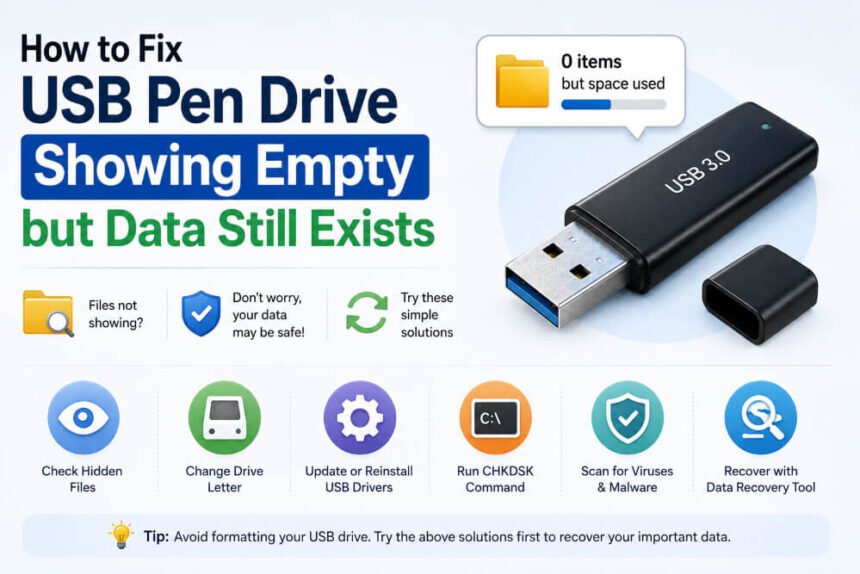
A USB pen drive is one of the most convenient storage devices, mainly used for transferring photos, videos, documents, and other important files. However, you may sometimes encounter issues when the USB drive appears empty even though the file is stored in it. There are several reasons, such as corruption, virus infection, file system errors, or improper device handling, why your stored files appear missing. If your pen drive is showing no files despite indicating used space, don’t panic.
Fortunately, several methods and free data recovery tools are available that you can try to fix USB pen drive that shows empty even when data exists within and fix such issues safely. This guide explains the major causes behind this problem and the best solutions to recover and access your files again.
Why Does a USB Pen Drive Appear Empty?
Before applying any fixes to regain access to the disappeared files, it is important to understand what may cause this issue. Some main reasons include:
- Hidden Files or Folders: Files become invisible due to modified attributes, making the USB drive appear empty despite stored data remaining intact.
- Virus or Malware Infection: Malicious programs can hide, corrupt, or convert files into shortcuts, preventing you from accessing the actual stored data properly.
- Corrupted File System: Damage in the drive’s file system prevents Windows from reading stored files, even though data still physically exists.
- Drive Letter Conflicts: Windows may fail to recognise the USB properly when another device already uses the same assigned drive letter.
- Bad Sectors in the Pen Drive: Physically damaged sectors prevent the drive from reading stored files correctly, causing missing or inaccessible data problems.
- Corrupted USB Drivers: Faulty or outdated USB drivers may stop the computer from detecting and displaying files stored on the drive.
Sometimes the drive may appear empty, while in other cases it may show shortcuts instead of actual files.
How do I Find Files Appearing Missing on a USB Pen Drive?
Now that you’re familiar with a few reasons for your disappeared files from the USB pen drive, it’s time to apply adequate methods to restore them. You can go with below methods one by one to find your missing files:
Method 01: Check if Files are Hidden
Before you proceed with advanced methods to restore your missing files on a USB pen drive, it’s important to check if the files are actually hidden. Sometimes the files are not deleted; they are just misplaced to a different location. You can follow the below steps to show hidden files on Windows PC:
- Firstly, connect the USB pen drive to your PC.
- Launch File Explorer, then go to the View tab.
- Select Show/hide > Hidden Items.
- Check if your missing files appear on the screen.
If your data becomes visible after enabling hidden items, you can permanently remove the hidden attribute using Command Prompt. To unhide files using CMD:
Press Windows + R, then type CMD in the search box.
Open Command Prompt as Administrator.
Type the following command: attrib -h -r -s /s /d E:\*.* (replace E with your drive letter) and press Enter.
This command removes hidden, read-only, and system attributes from all files and folders.
Method 02: Assign a New Drive Letter
Sometimes Windows fails to properly recognise the USB drive because of a drive letter conflict. In such cases, you can assign your USB drive a new letter to fix the issues. Follow the below steps to change the drive letter:
- Press Windows + X, then select Disk Management.
- Locate your USB pen drive and right-click the partition.
- Select Change Drive Letter and Paths, then tap “Change”.
- Assign a new drive letter from the drop-down and click OK.
Reconnect the drive and verify whether the files become accessible.
Method 03: Update or Reinstall USB Drivers
Outdated or corrupted USB drives can also be one of the main culprits for your missing files from USB drives. These drivers may prevent Windows from displaying or accessing files correctly. To fix such issues, you can follow the below steps to update or reinstall the USB drivers on your PC:
- Right-click the Start icon from the Taskbar and then select Device Manager.
- Expand Disk Drives and Universal Serial Bus Controllers.
- Right-click on your USB device, then select Uninstall Device.
- Now, disconnect the USB drive from your PC and restart the system.
- Once done, reconnect your USB pen drive.
- Windows will automatically reinstall the required drivers.
Method 04: Fix RAW USB Drive Using CMD
If your USB drive turns RAW, Windows might fail to access the file system properly. You can fix your RAW drive by attempting proper repair fixes via DiskPart. Here’s how to use DiskPart:
- Launch Command Prompt with administrative rights.
- Now, type the following command one by one:
- diskpart
- list disk
- select disk X
- list volume (replace X with your USB disk number)
- After that, you can verify the drive status and repair the partition if possible.
Additional Tip: How to Recover Files Deleted from USB Pen Drives?
If none of the above methods works, data recovery software can help restore inaccessible files from the USB pen drive. Some free data recovery software like Stellar Data Recovery Free are especially designed to restore your missing, lost, or deleted files from any storage media, including USB drives. You can even use this software to restore files deleted from SD cards, USB drives, SSDs, and many other internal or external storage media. In situations where the USB device is physically damaged, obsolete, or no longer needed, businesses often rely on professional IT asset disposition services to securely manage and recycle storage devices. Companies such as Circular IT group provide secure ITAD solutions that help organizations dispose of old USB drives, hard drives, and other IT equipment while protecting sensitive data and supporting environmentally responsible recycling practices.
The free version supports data recovery of up to 1 GB of files without any cost. However, you can upgrade to premium versions to restore files of larger size and to enjoy more advanced features.
- You can use the Stellar Data Recovery Free software to restore deleted photos, videos, documents, and other types of files of various file formats.
- The software supports data recovery in three simple steps, i.e., Select, Scan and Recover.
- This free data recovery tool also lets you preview the recoverable files before saving them on your PC.
- It performs both Quick Scan and Deep Scan to recover files that were recently deleted or lost due to corruption, formatting, or virus attacks.
Wrapping Up
A USB pen drive showing empty despite occupied storage space can be alarming, but in many cases, the data still exists and can be easily restored. Whether your files are hidden or misplaced due to malware attacks, corrupted partitions, file system errors, or drive letter conflicts, there’s always a chance to get your files back.
Start with basic troubleshooting methods such as showing hidden files, scanning for viruses, changing drive letters, and running CHKDSK. If the problem persists, use professional USB recovery software like Stellar Data Recovery Free to restore your files safely before formatting the drive. Most importantly, maintain regular backups and handle USB devices carefully to avoid future data loss situations.